
Set up smart home devices and accessories by connecting each device to its required app, network, or hub, then checking that it responds to commands. This guide is for beginners setting up devices such as smart bulbs, plugs, sensors, speakers, and thermostats. Allow 45-90 minutes for a small group of devices; installation time varies by product, and wired equipment may take longer.

Get furniture and decor delivered free with Prime
- Fast, free delivery on millions of items
- Prime Video, Amazon Music and more included
- Member-only deals all year
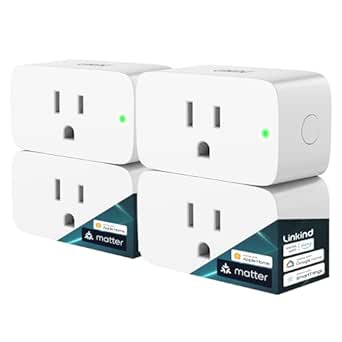
Linkind Matter Smart Plug, 4-Pack
- ✔ Pack size: 4 plugs
- ✔ Plug type: Type A
- ✔ Maximum rating: 15 A; 1800 W

EIGHTREE Wi-Fi Smart Plug, 15 A, 4-Pack
- ✔ Pack size: 4 plugs
- ✔ Listed amperage: 15 A in title; 10 A in specifications
- ✔ Connectivity: 2.4 GHz Wi-Fi

Amazon Echo Show 5 Smart Display with Alexa, Cloud Blue
- ✔ Display: 5.5-inch touchscreen
- ✔ Camera: 2 MP with built-in shutter
- ✔ Speaker: 1.75-inch full-range speaker
Difficulty: Beginner | Time: 45-90 minutes
What You’ll Need
Tools & Materials:
- Smartphone or tablet with the manufacturer’s app store access
- Wi-Fi network name and password
- Smart home device, power adapter, and included accessories
- Hub or bridge, if the device requires one
- Ladder or screwdriver only if the product instructions call for it
Knowledge:
- Basic use of a smartphone
- Ability to connect a phone to your home Wi-Fi
- Ability to identify the room where each device will be installed
Read the device’s installation and safety instructions before connecting it. Check that your Wi-Fi band, hub, phone operating system, and any required smart home platform are supported. Keep account passwords private. Do not install a wired device unless you can safely isolate power and follow the manufacturer’s instructions; hire a qualified electrician when needed.
Linkind Matter Smart Plug, 4-Pack
When a household mixes phone platforms or wants room to change ecosystems later, Matter support gives this four-pack its strongest advantage. Linkind lists compatibility with Apple Home, Alexa, Google Home, SmartThings, and its own AiDot app, so it has broader stated platform reach than EIGHTREE, which focuses on Alexa, Google Assistant, and SmartThings. Matter devices can communicate over the local network during internet outages, which may preserve some local control when a cloud connection is unavailable. That benefit depends on the network and compatible controller setup; it does not mean every remote feature will work without internet.The setup requirements are the main compromise. Apple Home, Alexa, Google Home, and SmartThings require a Matter controller, while AiDot can be used without a hub. The plug also needs 2.4 GHz Wi-Fi and IPv6, so it is not a universal drop-in for every home network. Its 15 A, 1800 W maximum rating, compact form, and stated short-circuit and overload protection make it a practical outlet accessory for compatible household devices. Compared with EIGHTREE, Linkind is the more ecosystem-flexible choice, but EIGHTREE asks less of buyers who simply want hub-free Wi-Fi control. We would pick Linkind for platform choice and local-network capability, and skip it if a Matter controller or network setup would add unwanted complexity.
Pros:
- Works with Apple Home, Alexa, Google Home, SmartThings, and AiDot.
- Matter devices can communicate over the local network during internet outages.
- Supports remote control, schedules, and timers.
- Rated up to 15 A and 1800 W, with stated short-circuit and overload protection.
Cons:
- Most listed platforms require a Matter controller.
- Requires 2.4 GHz Wi-Fi and IPv6.
Best for: Households using or planning to use multiple Matter-compatible smart home platforms.
Not ideal for: Buyers who want the simplest hub-free setup across their chosen platform or cannot confirm IPv6 support on their network.
Bottom line: Linkind is the strongest all-around plug set here for buyers who value Matter and broad platform options and can meet its controller and network requirements.
“Linkind is the strongest all-around plug set here for buyers who value Matter and broad platform options and can meet its controller and network requirements.”
EIGHTREE Wi-Fi Smart Plug, 15 A, 4-Pack
EIGHTREE makes the clearest case for buyers who want to automate everyday appliances without adding a hub or Matter controller. The four plugs connect over 2.4 GHz Wi-Fi and use the Smart Life app for setup, remote access, schedules, timers, countdowns, and cycle settings. Alexa and Google Assistant can provide voice control after setup, and SmartThings integration extends its usefulness for households already using that platform. Compared with Linkind, EIGHTREE has a narrower ecosystem list and no stated Matter local-network feature, but its hub-free setup is more direct.There is one specification conflict that should shape the buying decision: the product title says 15 A, while the supplied specifications say 10 A. Buyers should verify the rating on the product and packaging before connecting appliances, especially when the device draws substantial power. The round design is described as compact enough for tight spaces, a useful distinction if an outlet sits behind furniture; the listed dimensions are still worth checking against neighboring plugs. Setup through Smart Life is a required part of its voice-control path, so people who prefer to keep smart home devices within a single native app may find that less convenient. EIGHTREE is the straightforward pick for basic Wi-Fi automation, while Linkind better suits buyers prioritizing Matter and a wider platform mix.
Pros:
- Four plugs connect to 2.4 GHz Wi-Fi without a hub.
- Supports remote control, schedules, timers, countdowns, and cycle settings.
- Works with Alexa, Google Assistant, and SmartThings.
- Compact round form is intended for tight spaces.
Cons:
- The title lists 15 A, but the specifications list 10 A.
- Voice control requires setup through the Smart Life app.
- Supports 2.4 GHz Wi-Fi only.
Best for: Buyers who want several scheduled or voice-controlled outlets and do not want to add a hub.
Not ideal for: Anyone who needs a clearly established electrical rating before purchase, or wants Matter support and broader platform compatibility.
Bottom line: EIGHTREE is a practical hub-free option for routine appliance automation, provided buyers confirm its actual amperage rating first.
“EIGHTREE is a practical hub-free option for routine appliance automation, provided buyers confirm its actual amperage rating first.”
Amazon Echo Show 5 Smart Display with Alexa, Cloud Blue
The Echo Show 5 earns its place by changing how we interact with a smart home: it puts Alexa, compatible device controls, and glanceable information on a 5.5-inch touchscreen. That can be more convenient than relying on a phone for every command, and the 2 MP camera supports video calls and home check-ins with compatible services. Its 1.75-inch speaker also handles media playback and spoken responses. Unlike the Linkind and EIGHTREE plugs, this is not an outlet accessory; it is a compact interface that can complement smart devices rather than replace them.That broader role comes with tradeoffs. The screen and camera make it more useful for calls and visible information than either plug set, but the Echo Show 5 is centered on Alexa and does not offer the cross-platform Matter positioning described for Linkind. A camera shutter and a combined microphone and camera off button provide tangible privacy controls, though buyers who do not want a camera-equipped device may prefer adding plugs alone. Some skills and services can require subscriptions or additional fees, and the listed Wi-Fi limitation excludes ad-hoc or peer-to-peer networks. Choose it when a small display and Alexa control point suit the room; if the priority is automating several appliances, Linkind or EIGHTREE is the more direct purchase.
Pros:
- 5.5-inch touchscreen brings compatible smart home controls and information into view.
- Camera supports video calls and compatible home check-ins.
- Camera shutter and microphone and camera off button provide privacy controls.
- Includes recycled materials and recyclable packaging.
Cons:
- Alexa-centered controls do not match Linkind’s stated cross-platform Matter reach.
- Some skills and services may require subscriptions or additional fees.
- Does not support ad-hoc or peer-to-peer Wi-Fi networks.
Best for: Alexa households that want a small screen for compatible smart home controls, video calls, and at-a-glance updates.
Not ideal for: Buyers seeking a set of smart outlets, broad platform flexibility, or a device without a camera.
Bottom line: Echo Show 5 is the best choice here when a compact Alexa display adds more value than another smart plug.
“Echo Show 5 is the best choice here when a compact Alexa display adds more value than another smart plug.”
As an Amazon Associate we earn from qualifying purchases.
Before You Start
Choose a location for each device before pairing it. Confirm that the location has power and, for battery devices, is within the range of the hub or Wi-Fi access point. Many setup processes require Bluetooth and location access on your phone so the app can find nearby devices. Turn these on when prompted, and connect your phone to the home network the device will use. If the product requires a hub, set up the hub first.
Step-by-Step Instructions
Step 1: Check compatibility and plan device locations
Read the product label and setup guide to confirm that the device works with your network, hub, and preferred smart home platform. Mark where you plan to place it and check that the location meets the product’s requirements for power, temperature, signal, or distance. For a smart plug, confirm that the connected appliance’s power rating is within the plug’s limit.
Tip: Do not use a smart plug for a heater, motor, or other high-load appliance unless the manufacturer explicitly rates it for that use.
Check: You know which app or hub the device needs, and its intended location meets the stated requirements.
Step 2: Install the required app and prepare the network
Install the manufacturer’s official app from your phone’s app store. Create or sign in to an account, then allow Bluetooth or local network access if the app requests it for setup. Check that your phone is on the correct home Wi-Fi network and that you have its password ready. If the device only supports 2.4 GHz Wi-Fi, check your router or app instructions for how to connect it to that band.
Tip: Some routers combine 2.4 GHz and 5 GHz under one network name. Follow the device maker’s pairing directions if the app cannot find the device.
Check: The app opens successfully, your account is active, and your phone is connected to the home network.
Step 3: Set up the hub or bridge if required
Connect the hub to power and to the router or Wi-Fi as directed by its instructions. Open its app, add the hub to your account, and wait for setup to finish before adding accessories that depend on it. Place the hub in an open, central location, away from metal cabinets and other obstructions.
Tip: Keep the hub powered during setup and firmware updates. Do not unplug it while its indicator shows an update in progress.
Check: The app lists the hub as online and ready to add compatible devices.
Step 4: Power on or install the device
Follow the product instructions to insert batteries, connect the power adapter, screw in a bulb, or mount the device. For a plug-in accessory, connect it to a suitable outlet. Keep the device close to the hub or router during pairing if the instructions recommend it. For hardwired equipment, follow the safety instructions and stop if you cannot confirm the circuit is off.
Tip: Use only the supplied or manufacturer-approved power supply and mounting parts.
Check: The device powers on, and its indicator or display shows the state described in its setup guide.
Step 5: Add the device in its app
In the app, choose the option to add a device and select the correct product type or model. Scan its setup code if requested, or follow the app’s pairing prompts. Put the device in pairing mode using the specified button or action, then wait for the app to find it. Enter the Wi-Fi password or select the hub when prompted.
Tip: Pair one device at a time. If the app asks you to reset a device, use the manufacturer’s reset procedure and then start pairing again.
Check: The app confirms that the device has been added and shows it as connected or available.
Step 6: Name the device and assign its room
Give the device a short, recognizable name, such as “Hallway lamp” or “Kitchen motion sensor,” and assign it to the correct room in the app. Use names that are easy to say if you plan to control devices by voice. Repeat the power-on and pairing steps for each remaining device.
Tip: Avoid giving several devices the same name; clear names make voice commands and troubleshooting easier.
Check: Each device appears under the right room with a distinct name.
Step 7: Update and test each device
Check the app for firmware updates and install them as directed. Then try the device’s main function from the app: switch a bulb or plug on and off, view a sensor’s status, or adjust a thermostat within its normal operating range. Test it from the location where you will usually control it, not only beside the router.
Tip: Keep the device powered and the phone connected while an update runs. Updates can temporarily make a device unavailable.
Check: The device responds to its main control and remains connected after you move away from it.
Step 8: Create one simple routine and confirm control
If you want an automated action, create a simple routine in the app, such as turning on a lamp at a set time. Start with one device and a clear trigger, save the routine, and test it manually or wait for the scheduled time. If you use a voice assistant or another platform, link accounts only through the official app settings and test one direct command.
Tip: Check the routine’s time zone, schedule, and device selection if it runs at the wrong time or affects the wrong accessory.
Check: The routine or voice command controls the intended device, and you can still operate it directly in the manufacturer’s app.
Common Mistakes to Avoid
- Trying to pair a device on an unsupported Wi-Fi band. — Check the device’s network requirements and follow the maker’s instructions for selecting or enabling the required band.
- Adding accessories before setting up their required hub. — Install and verify the hub first, then add the accessories that depend on it.
- Placing a device where the wireless signal is weak. — Pair it near the router or hub first, then move it to its planned location and test the connection there.
- Using unclear device names or creating a complicated routine before basic control works. — Assign distinct room-based names and confirm direct app control before adding automation.
Troubleshooting
Problem: The app cannot find the device during pairing.
Solution: Confirm that the device is powered and in pairing mode, and that Bluetooth or the required phone permissions are enabled. Move the phone closer, restart the app, and follow the manufacturer’s reset instructions if pairing still fails.
Problem: The device joins Wi-Fi but appears offline later.
Solution: Check that the router is online and that the device is within signal range. Restart the device and router if needed, then check for app or firmware updates. If the device uses a hub, confirm that the hub remains online.
Problem: The device responds in its app but not to a voice command.
Solution: Confirm that the correct account and smart home service are linked, then check that the device name and room are current. Test with the full device name and a simple command.
Problem: A routine runs at the wrong time or does not run.
Solution: Review the routine’s trigger, selected device, schedule, and time zone. Save changes, then test the routine again and check that the app and device have network access.
What Success Looks Like
Your setup is complete when each device appears in the correct room in its app, shows as connected, and responds to its primary control from its intended location. Any routine or linked voice command you created should operate the intended device. You should also know how to switch each device off or reset it using its product instructions.
Next Steps
Keep the apps and device firmware current, replace batteries when the app reports low power, and review routines when schedules or household needs change. Save product manuals and note which account or hub manages each device. Add more devices one at a time, testing each before building additional routines. Contact the manufacturer or a qualified installer if a device repeatedly loses power, overheats, or requires wiring you cannot safely complete.
Frequently Asked Questions
Do all smart home devices need a hub?
No. Some connect directly to Wi-Fi or Bluetooth, while others need a compatible hub or bridge. Check the product requirements before setup.
Why does my smart device need a 2.4 GHz network?
Some devices use 2.4 GHz Wi-Fi because it is supported by their radio hardware and can reach farther indoors than 5 GHz. Follow the product’s network requirements and pairing instructions.
Can I set up several devices at once?
You can install multiple devices, but pairing them one at a time makes it easier to identify connection problems and assign the right room and name.
Do I need to link every device to a voice assistant?
No. You can control many devices through their manufacturer’s app alone. Link a voice assistant or another platform only if you want that method of control.
What should I do before giving away or replacing a device?
Remove it from the app and account, then follow the manufacturer’s factory reset procedure. This clears saved settings and prepares the device for another owner.